Editor tour
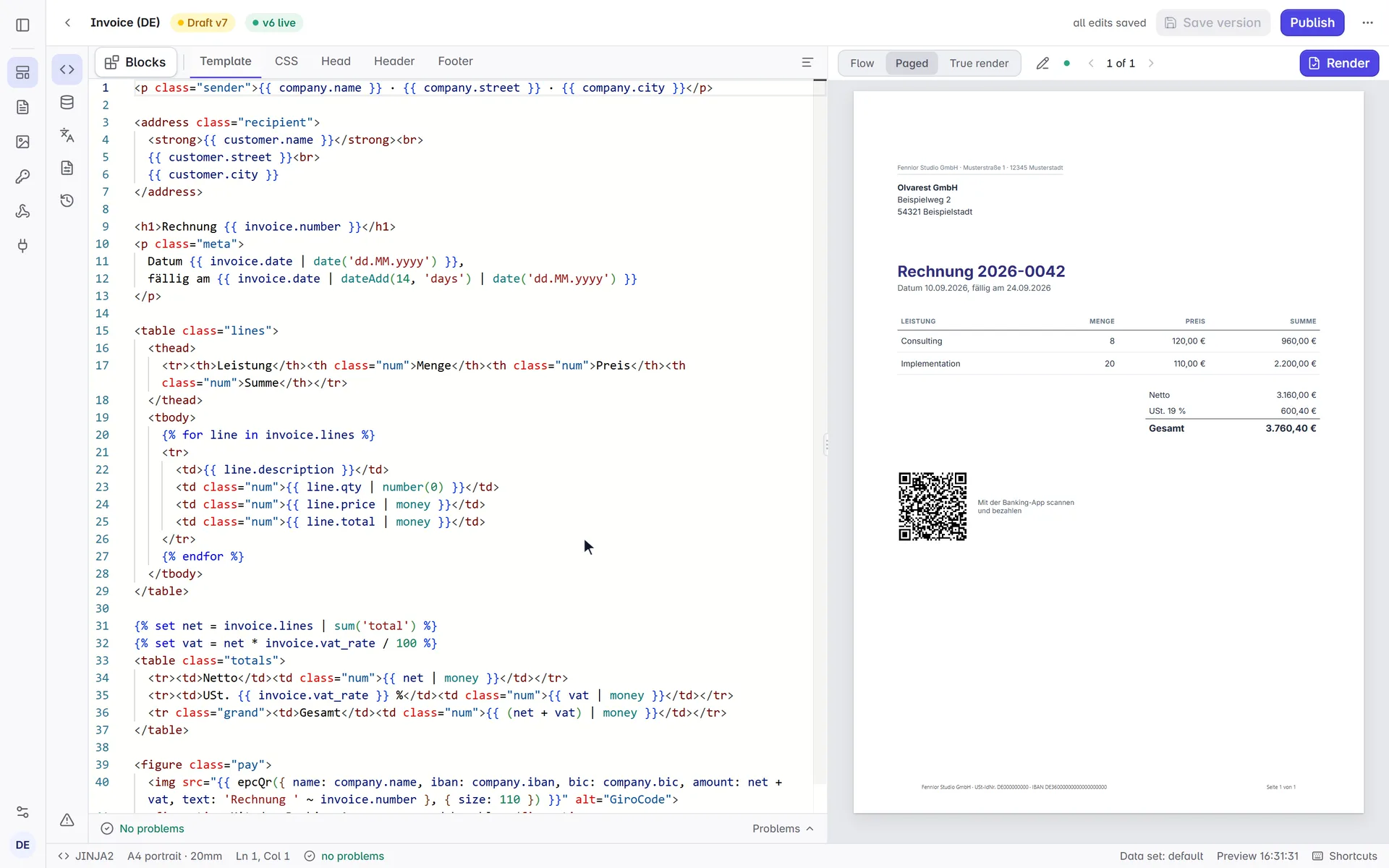
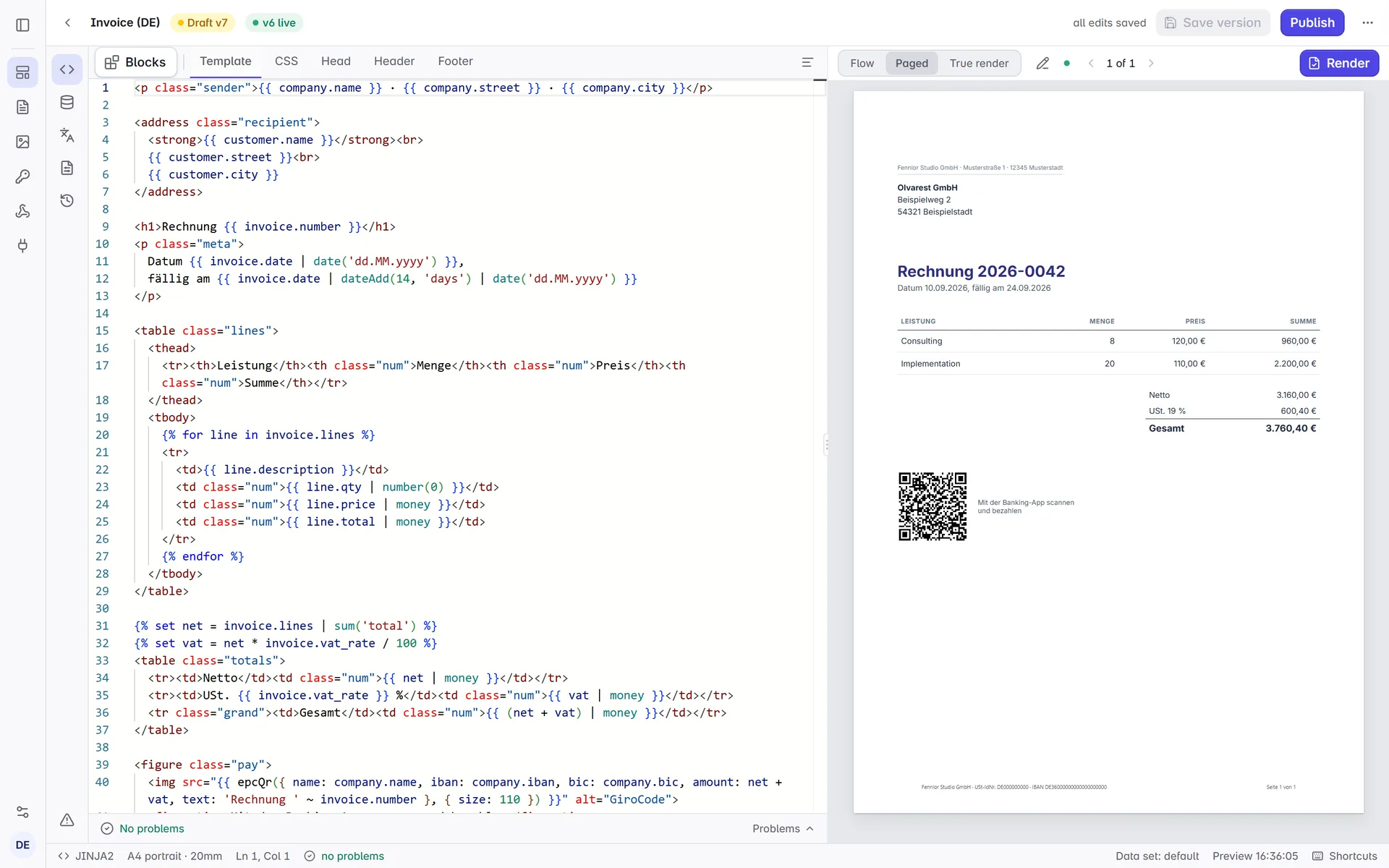
The editor is built on Monaco, the editor component of VS Code, and it knows your data: it reads the sample data of the template and uses it for autocomplete, diagnostics and the preview.
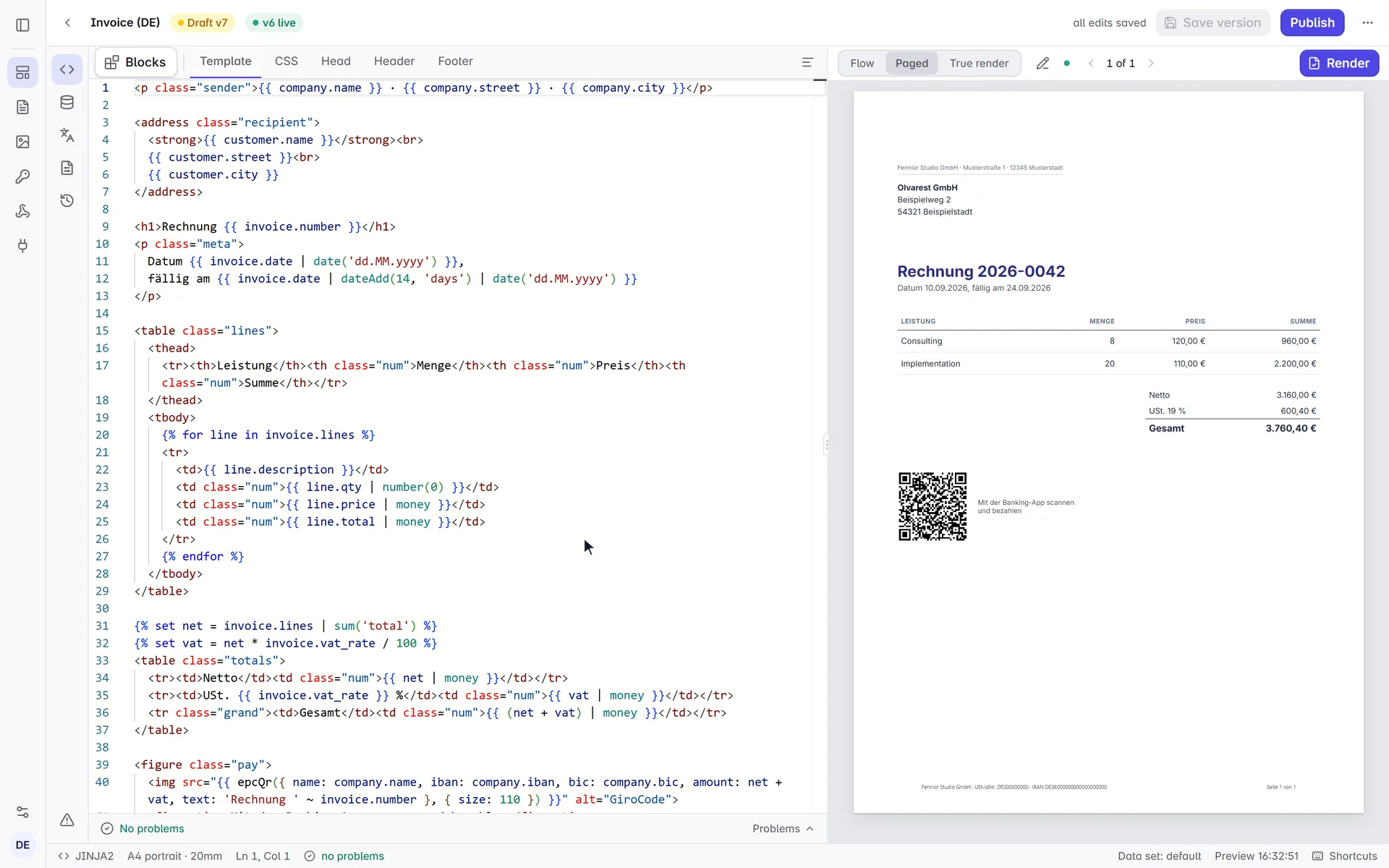
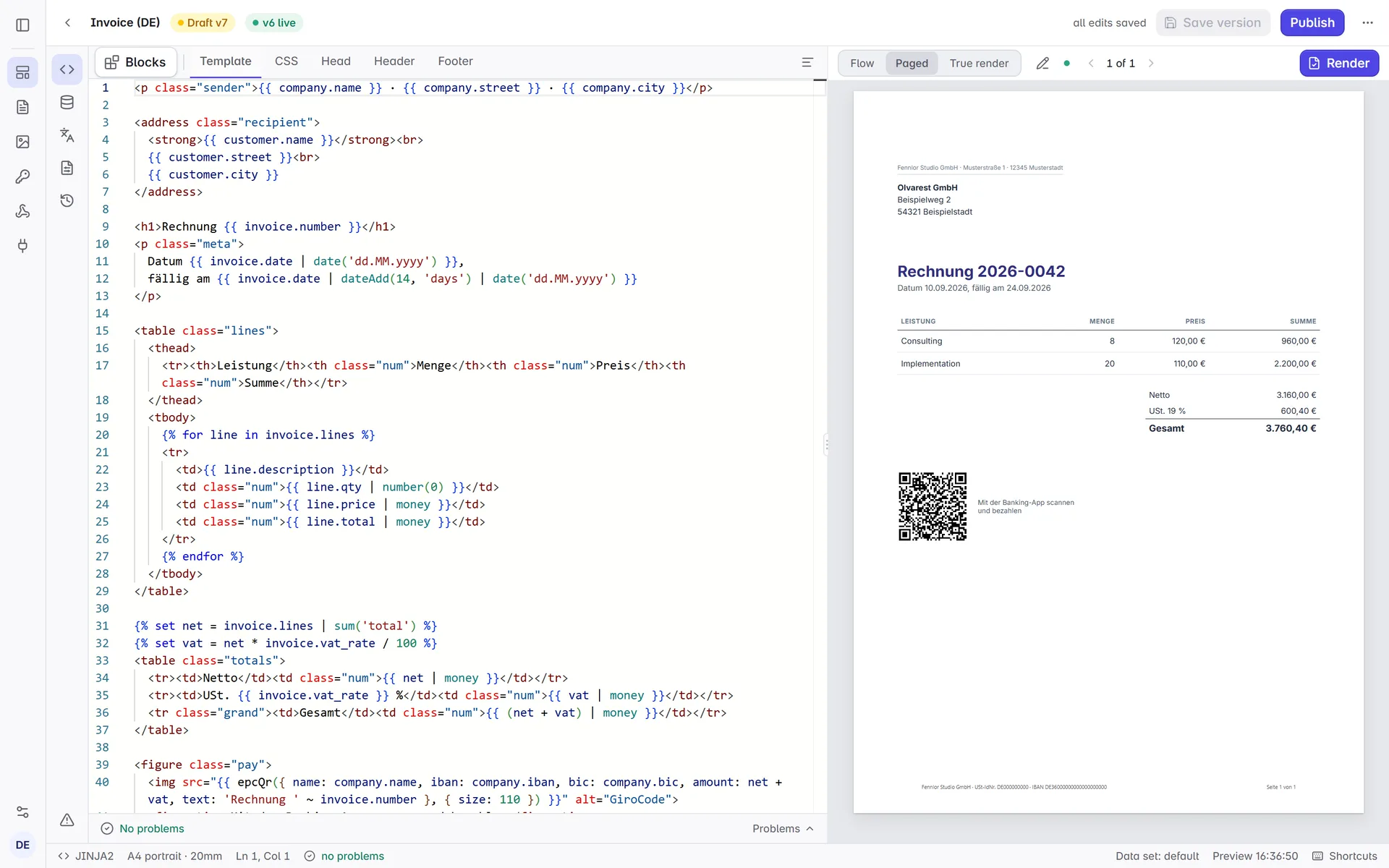
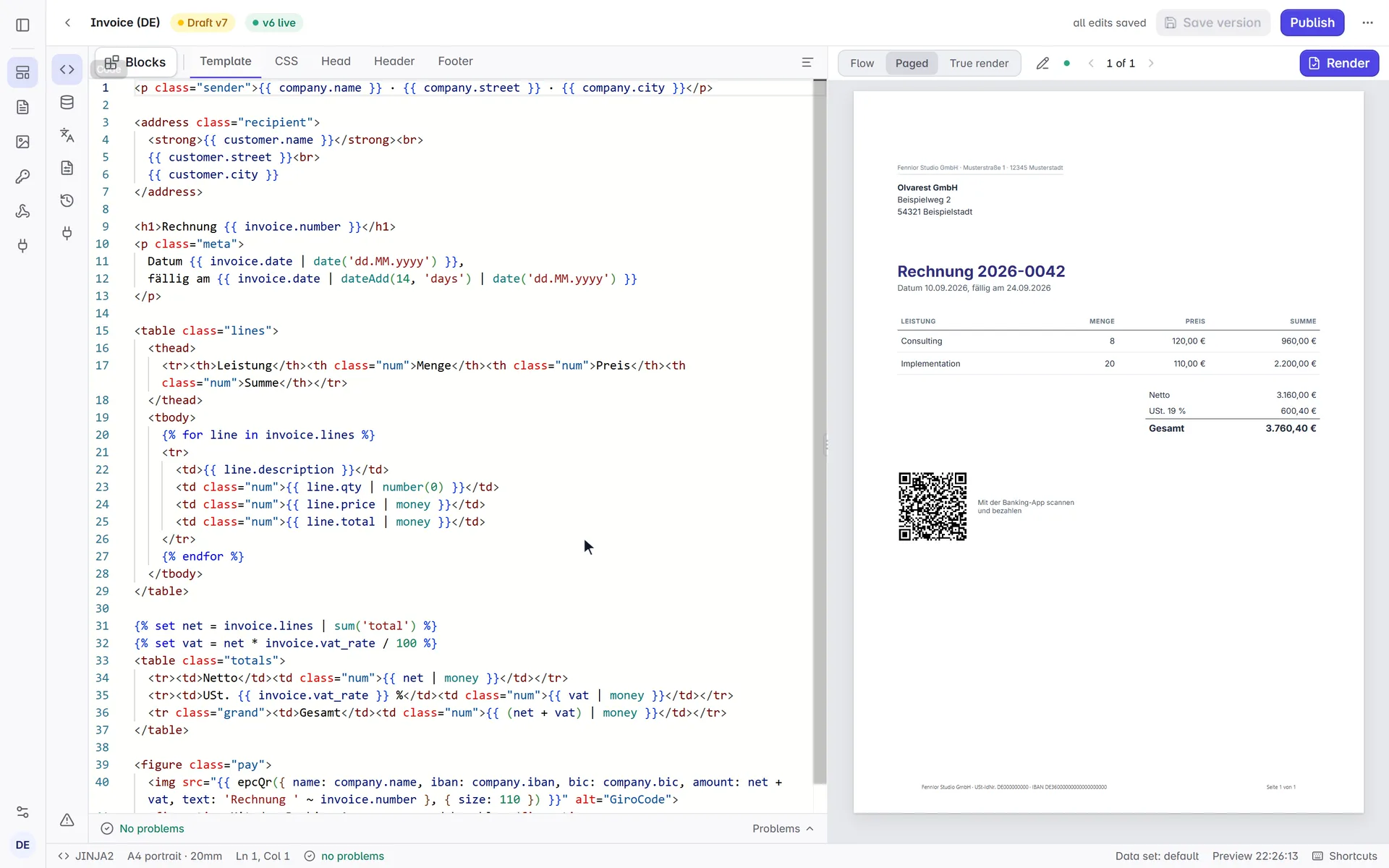
The page has three parts. The rail on the left switches between the editor's panels: Code (the tabs Template, CSS, Head, Header and Footer), Data and schema, Translations, Page setup (paper, margins and the other settings), Versions and API; image templates also have Design, the visual editor. The triangle at the bottom of the rail opens the problems list. The middle shows the panel you picked, the right side the preview, and the status bar at the bottom names the engine, the paper, the cursor position, the problem counts and the data set in use.
Autocomplete from your data
Type {{ invoice. and the editor offers the fields of your sample data with their type. Press Ctrl+Space once more to open the details beside the list, which show each field's example value.
Diagnostics
Unclosed tags, unknown filters and variables missing from the sample data are underlined as you type. The strip under the code counts the errors and warnings and names the first one; click it for the whole list, and click a problem to go to its line. F8 jumps to the next problem.
Errors are what would fail a render (an unknown filter, a tag that does not parse); warnings are worth a look but render (a variable your sample data lacks prints as empty).
Blocks
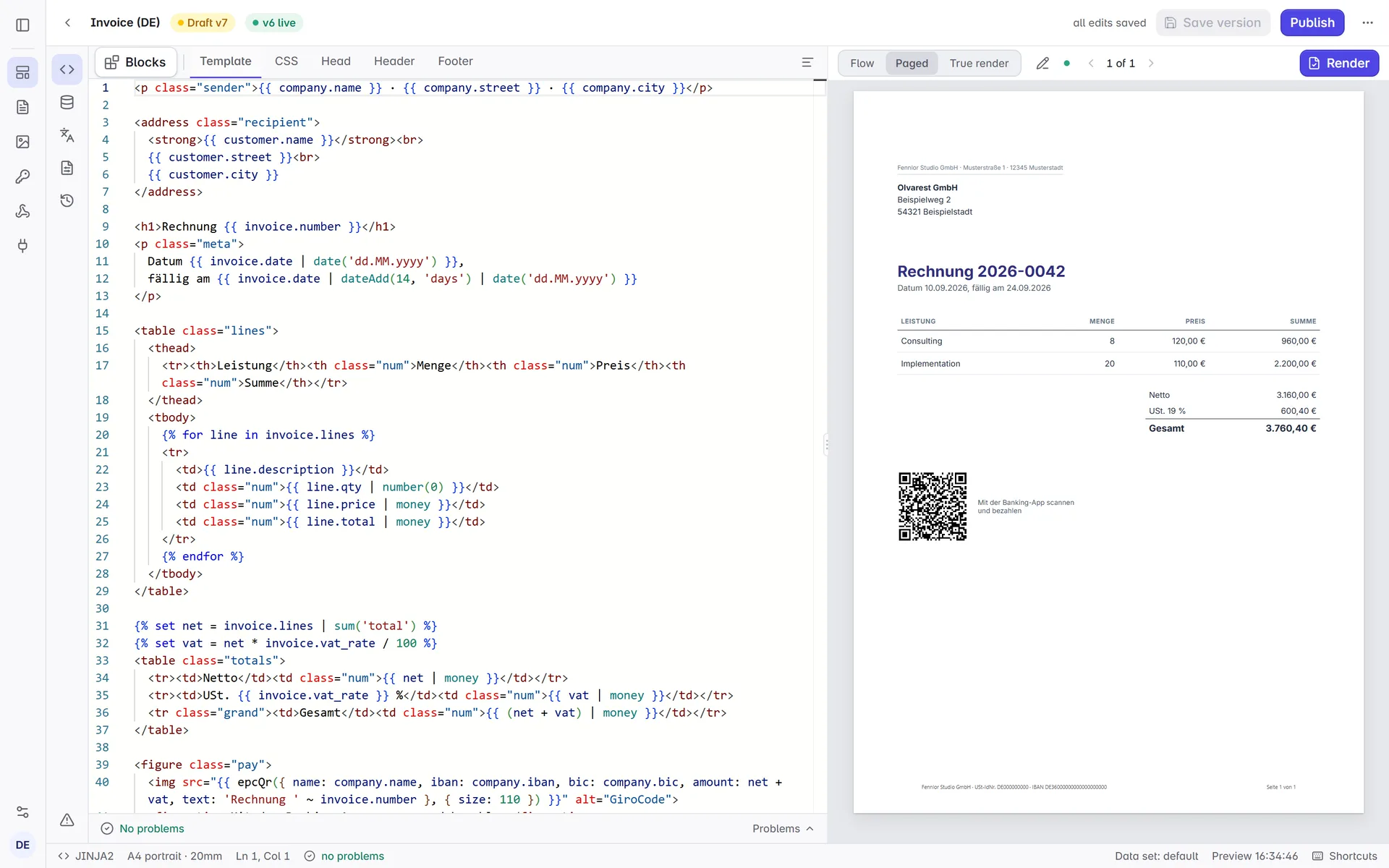
Blocks, at the start of the tab strip, opens a library of ready-made pieces beside the code: letterhead, window envelope address, invoice table, totals, payment terms, SEPA payment QR code, signature, page break and more, followed by your organisation's shared partials. Search by name, point at a block to see a preview of it, and click to insert it at the cursor. A block brings the CSS it needs and adds the sample data and translations it reads, so the preview shows it straight away.
Paginated preview
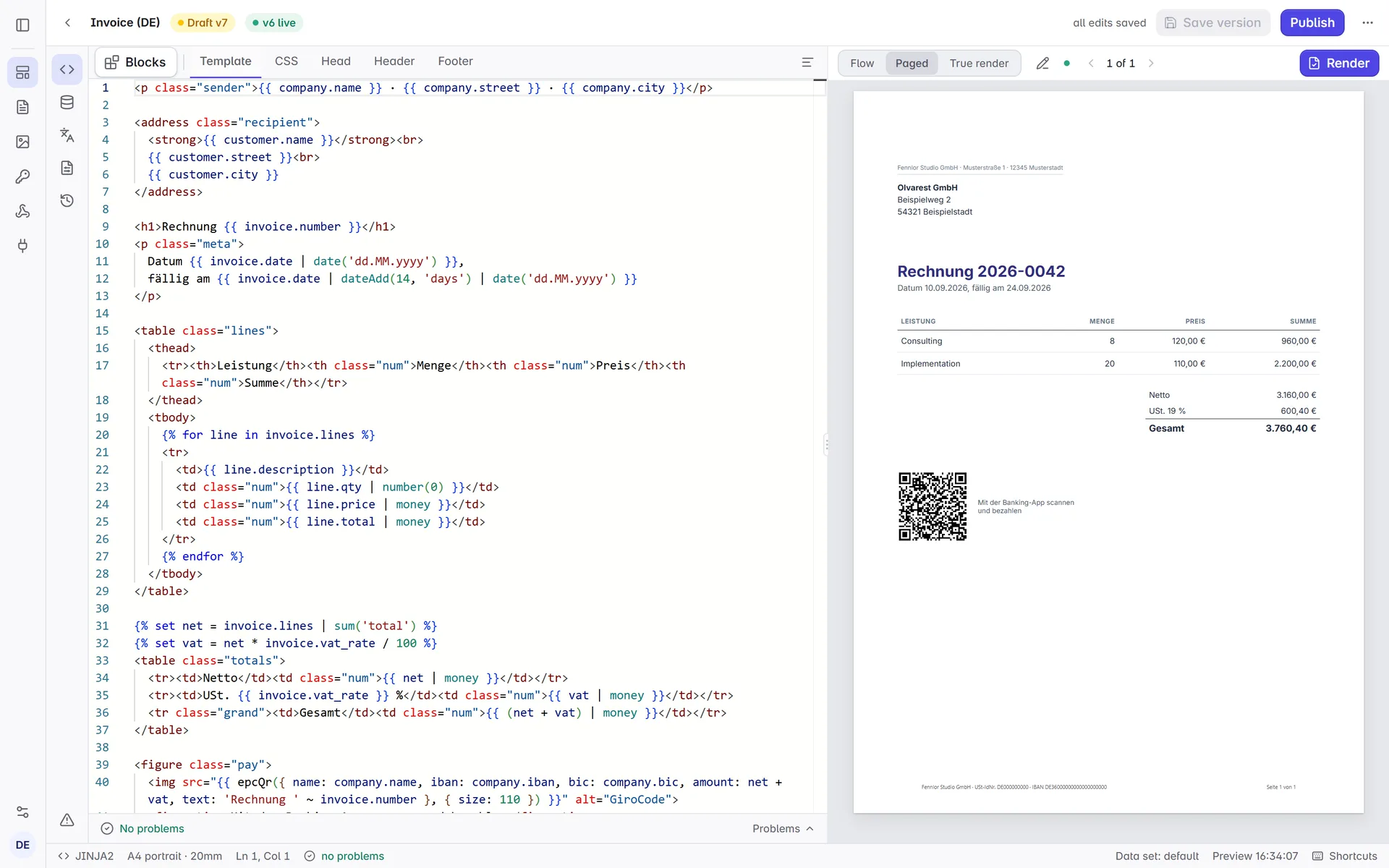
The switch above the preview has three modes:
| Mode | Shows |
|---|---|
| Flow | The document as one long page, rendered in your browser as you type |
| Paged | Real pages with headers, footers and page numbers, rendered in your browser (PDF templates only) |
| True render | The file the render servers make, after you click Render (see True render) |
In the Flow and Paged previews, click an element and the editor opens the line that produced it, in the Header or Footer tab when that is where it comes from.
Zoom the flow and paged previews with the buttons above them, Ctrl and the mouse wheel (or a pinch on a touchpad), or Ctrl with +, - and 0. The true render shows the PDF in the browser's own viewer, which has its own zoom.
Edit text in the preview
To change the wording without reading the code, switch on Edit text (the pencil above the preview, or Edit text in the preview in the command palette). Text you can edit is outlined as you point at it; click it and type.
- Values stay values. A variable such as
{{ customer.name }}shows its value from the sample data as a highlighted chip. You can type around it or delete it, but its expression is kept as written. A heading that holds nothing but a variable works the same way: the chip stands alone, and you add text before or after it, while the value itself is changed in the data. The same goes for inline markup such as<strong>or a link: click it to edit its own text. - Enter or Tab keeps the change, Escape drops it.
Shift+Enterstarts a new line. The change goes into the template like one you typed in the code, so it shows as unsaved and is undone withCtrl+Z, in the preview or in the code. - Translated text edits the dictionary. Where the whole text is one
t()call, the edit changes the translation of the language the preview shows (the template's locale). If that language had no text yet and the preview showed English, your text becomes the new translation for that language; English stays as it was. - Repeated text changes everywhere. Text inside a loop is written once in the template, so editing one row changes every row; a note above the text says how many.
- Some text stays in the code. Text with an
ifor a loop inside it, text a helper or a partial writes, and elements that hold other blocks are edited in the code; clicking them opens their line as outside edit mode. The brand kit's texts, such as the legal footer, are changed on the Brand page.
Editing is for owners, admins and editors. A text split across two pages in the paged preview is edited in the flow preview.
True render
One click on Render (or Ctrl+Enter) renders what is open in the editor, unsaved changes included, on our servers with the data set you picked, and shows the exact PDF or image, with how long the render took, its size and its page count below it. It costs nothing; on the Free plan the result carries a small test mark, and an e-invoice carries it on every plan.
Data sets
Keep several named sample data sets per template (one line, fifty lines, missing optional fields) and switch between them in the list of the Data and schema panel. Sample data never leaves the editor: it drives the preview, the completion and the inferred schema, while an API render always uses the data in the request. The preview and the schema follow the set you pick. default is the set a template starts with; the API uses it only where a call brings no data of its own (POST /templates/{id}/validate without data, and the schema it infers for a template that stores none). The command line sees every set as a data/*.json file.
More in the editor
- Brand kit and shared partials. The preview and True render use the organisation's brand kit and shared partials; autocomplete offers
brand.*and the names of shared partials, and the problems list tells you when a partial stored with the template hides a shared one. - History and diff. Every saved version is kept. The Versions panel shows the working copy at the top, then the release channels, then every saved version with its note and who saved it. Compare puts a saved version beside what is open in the editor, Restore as new draft saves its content as a new version, and Publish makes it the one the API renders. The panel lists the latest fifty, and Show older versions under them brings the rest, fifty at a time.
- Word and PowerPoint templates open a page of their own instead of the code editor, with a quick preview of Word documents and the true render as PDF. See Word and PowerPoint templates.
- Search and commands.
Ctrl+K(⌘Kon a Mac) opens one search box on every page. It finds the commands of the page you are on (save, publish, history, true render, preview mode, zoom, a tab, a data set, a block), your templates, the examples, shared partials, files, API keys (by name and prefix), webhook endpoints (by address), the members of your organisation (by name and e-mail), the app's pages and the sections of settings, billing and brand, and the documentation's main pages. Words may come in any order and umlauts need not be typed; the part of each result that matched is marked. With nothing typed, the box starts with the templates you opened last. - Narrowing the search. Type
#to search templates only,>for commands,/for pages and settings,?for help; Backspace in the empty field goes back to everything. A pasted render id (rnd_…) or template id (tpl_…) opens that render or template. A pasted API key finds the key it belongs to by its first characters, in your browser only: nothing is sent for it. - What to do with a template.
→on a template lists its actions: open it in the editor, open its API tab, see its renders, or copy its slug or id.←goes back to the results. Owners and admins also find Create an API key, Add a webhook endpoint and Invite members, which open that page with its dialog or its invite field.
Keyboard shortcuts
The search box lists the shortcut next to each command, so Ctrl+K is also the fastest way to look one up.
| Shortcut | What it does |
|---|---|
Ctrl+K / ⌘K | Open the search box. Works on every page, and inside the editor too. |
↑ / ↓, PageUp / PageDown | In the search box: move through the results, or jump to the next or previous group. |
Enter, Ctrl+Enter / ⌘Enter | In the search box: open the highlighted result, or open it in a new tab. |
→ / ← | In the search box: list the actions of the highlighted template, or go back to the results. |
Ctrl+S / ⌘S | Save a version: opens the Save version dialog with an optional note. The browser's own save dialog stays out of the way. |
Ctrl+Enter / ⌘Enter | True render: render what is open in the editor on our servers. |
Shift+Alt+F | Format the current tab. |
F8 | Go to the next problem. |
Ctrl+Shift+M / ⌘⇧M | Open or close the problems list. |
Ctrl+Alt+→ / Ctrl+Alt+← | Next or previous code tab (Template, CSS, Head, Header, Footer). |
Ctrl+\ / ⌘\ | Collapse or expand the code pane; on a narrow screen, switch between code and preview. |
Ctrl+Wheel / ⌘Wheel | Zoom the preview in or out. |
Ctrl + + / - / 0 | Zoom the preview in, out, or back to 100 %, while the preview has the focus. |
Escape | Close the search box, a dialog or the blocks library; in the preview, drop a text edit. |
Shift+Alt+F works on every code tab. Data and Translations are formatted as JSON, CSS as CSS, and Template, Head, Header and Footer as HTML — with {{ ... }}, {% ... %} and {# ... #} left exactly as they are, so reindenting never moves an engine tag.
Inside the code area every Monaco shortcut works as well — Ctrl+F to find, Ctrl+H to replace, Alt+↑/Alt+↓ to move a line, Ctrl+/ to comment, F1 for Monaco's own command list.
The templates list
The Templates page lists every template of the workspace. Beside each slug, two small buttons copy the slug and the template ID, the two ways an API call names a template. API request in a row's menu opens the template on its API panel.
Tick the checkboxes to act on several templates at once: Archive… hides them from the list, and their API renders fail with 404 template_not_found until you restore them; renders and outputs made before stay. With Archived switched on, the same bar offers Restore and, for owners and admins, Delete permanently…, which removes their versions, channels and stored files after you type the confirmation. Only archived templates can be deleted, and a deleted template cannot be restored. Renders keep their log entries.
From the editor to your code
The editor works on drafts; the API renders the published version. Save with Ctrl+S as often as you like; nothing changes for your integration until you publish.
The API panel, the last entry of the rail, is where the open template meets your code. Word and PowerPoint templates have it as a tab of their page.
- Which version a call renders. The first line names the published version and says what is not in it: a newer saved version, or changes you have not saved. Where a saved draft is ahead of the published version, a switch offers it; the request then carries
"version": "latest", which the API accepts from test keys only. - The request for this template, in curl, TypeScript, Python, PHP, Go, C#, Java and Ruby. It names the template's slug, reads the key from
FORMFEED_API_KEYand the data fromdata.json. What else a render can be told is in Rendering. data.jsonis the data set the editor shows, to copy or download. It is the shape your code sends; your own data takes its place.- A key. Where the workspace has no test key, owners and admins create one with a click. Its secret is shown once, as the
exportline a shell needs, and is gone when you leave the panel. An existing test key is named by its prefix, because a secret cannot be shown twice. - Send test request sends the request on screen through the API and shows what comes back: the file, the render in the render log, and the JSON your code will hold, or the problem with the page of its code. It is a test render, as a test key makes one: free, kept for 24 hours, on the Free plan with the test mark, and it may render the latest draft. It needs no key, since the app sends it with your session. Owners, admins and editors can send it.
?panel=api on a template's address opens it on this panel.